
This Week’s Tasks: What to Do First, on the Workspace
What the “This week’s tasks” card on the Workspace lists, how tasks are ranked, how Done / Dismiss / Undo work, where Write article and the change list lead, and how it ties to the AI Assistant’s “Do first this week”.
Where it is
Sidebar Workspace, the This week’s tasks card under the top metrics. The note on the right reads Last 14 days vs the 14 before: every task comes from comparing the project’s AI answers in the last 14 days with the 14 days before.
The card lists up to 5 tasks, highest priority first. When nothing needs attention it says No tasks need attention first this week.
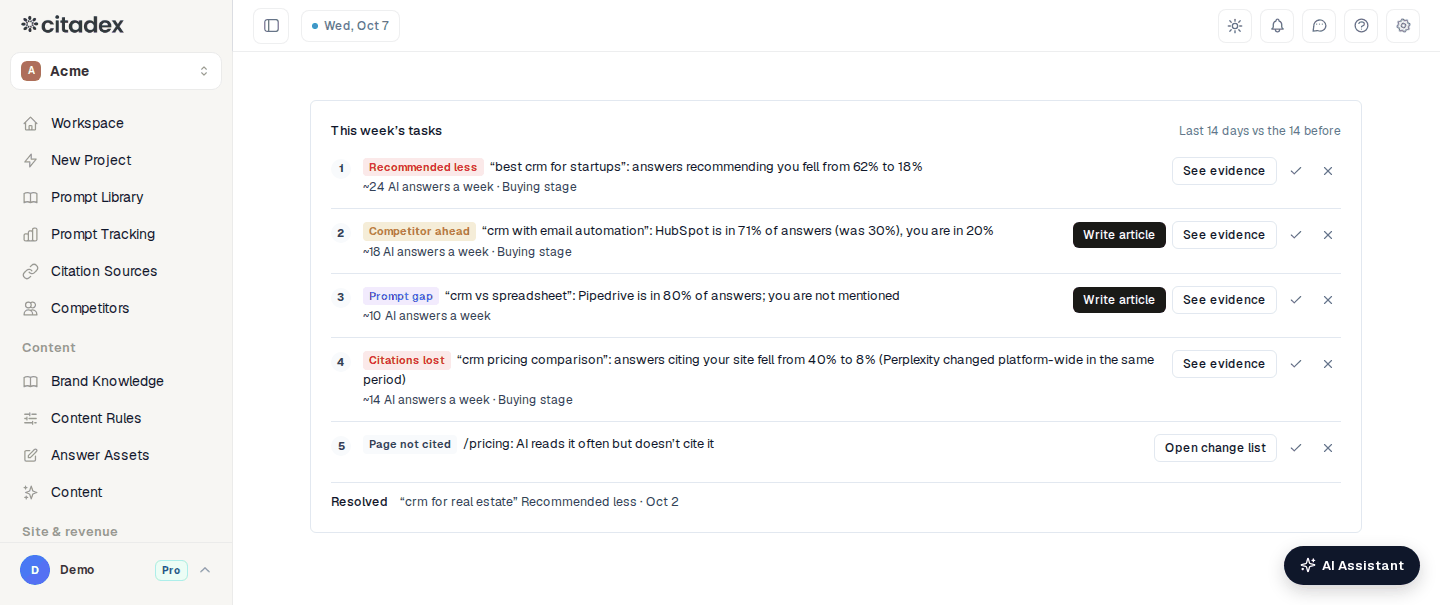
The “This week’s tasks” card on the Workspace
The six task types
Each task starts with a tag, followed by one line saying what happened, for example “best crm”: answers recommending you fell from 60% to 20%. The grey line below shows ~n AI answers a week, plus Buying stage when the prompt is a buying-stage question.
| Tag | When it appears | Buttons |
|---|---|---|
| Recommended less | At least 30% of answers recommended you before; now 20+ points fewer | See evidence |
| Citations lost | Answers cited your site before; now less than half as often | See evidence |
| Competitor ahead | A competitor is now in at least 40% of answers (25+ points more than before) and ahead of you | Write article, See evidence |
| Prompt gap | You are never named, while competitors are in at least 50% of answers | Write article, See evidence |
| Page not cited | AI reads a page often but doesn’t cite it, or it’s cited but brings no visits (from the AI Traffic optimization plan) | Open change list |
| Wrong brand info | AI gives a wrong phone number, address or price in answers to your brand searches | Wrong brand info |
How tasks are ranked
Priority = size of the change × business value of the prompt.
- Size: the bigger the drop or the competitor’s lead, the higher it ranks.
- Business value: the prompt’s buying stage. Decision ranks highest, then consideration, then awareness. Prompts without a stage count as decision when the wording shows buying intent (“best”, “vs”, “price”, “alternatives” and so on).
- Revenue: once Revenue Attribution is connected, prompts are also weighted by the AI revenue of their topic.
- Platform-wide changes: when an AI engine changed for all projects in the same period (listed in the Workspace card Platform-wide changes), a drop on that engine counts half and the line says so, e.g. “(ChatGPT changed platform-wide in the same period)”.
- Wrong brand info: wrong phone numbers and addresses come first, wrong prices next.
Working through a task
- 1
Check the evidence
See evidence opens the prompt’s results: the AI’s own words, who it recommended and which sources it cited. For wrong brand info the button is Wrong brand info and opens Prompt Tracking → Brand searches.
- 2
Fix it
Prompt gap and Competitor ahead have Write article: it opens Answer Assets with the prompt filled in. The credits are shown before generating and nothing runs until you confirm. Page not cited has Open change list: it opens that page’s change list in the AI Traffic optimization plan.
- 3
Mark it done
After the fix, click ✓ (Done). The task gets a tick and the label Done, with Undo next to it. While the problem still shows in the data, the task stays in the list; once later data no longer shows it, it moves to Resolved at the bottom of the card with the date (the latest 3 are shown).
- 4
Skip what doesn’t apply
Click ✕ (Dismiss) and the task leaves the card for good.
Members with the Viewer role don’t see ✓ and ✕.
How it ties to the AI Assistant’s weekly plan
In the AI Assistant panel, open the calendar icon at the top, turn on Prepare my week automatically and save. Every Monday a This week’s plan conversation appears. Its Do first this week section is the top 3 tasks from this same list, each with a See evidence link. The Workspace card and the weekly plan always show the same tasks.
Where wrong brand info comes from
From Prompt Tracking → Brand searches:
- Fill in Official facts (official domains, support phones, email, prices). The checks compare AI answers against these.
- Use Brand-defense prompts → generate to add questions about your brand (up to 8; they are scanned and use credits like any prompt, and adding them needs enough credits for their first check).
- After a scan, a non-official phone number or look-alike address is High risk and a price that matches no official price is Medium. Wrong phones, addresses and prices become tasks here; High-risk issues are also sent as project alerts.
FAQ
The card stays empty. Tasks compare two 14-day windows, so the last 28 days need scan data. New projects get tasks once that data exists.
Why isn’t the biggest drop first? Ranking also weighs business value, so buying-stage prompts and revenue-earning topics move up.
Does Done change my numbers? No. It only records that you handled the task; metrics always follow the scans.
I dismissed a task by mistake. The card has no undo for dismissed tasks. The prompt itself is still in Prompt Tracking to review and work on.
Was this article helpful?