
Prompt Tracking — The Table, the Evidence Drawer and Six Tabs
The six tabs of Prompt Tracking (Tracked, Achievements, Retests, Outreach, AI searches, Brand searches), the engine rank badges, the Order menu and bulk actions in the table, and the evidence drawer with the answer, sources, earlier answers and coverage trend.
Tabs
| Tab | What it shows |
|---|---|
| Tracked | One row per tracked prompt, the main table |
| Achievements | Wins and losses detected between scans, goals, results reports |
| Retests | Re-measure the same prompts after a change to see whether it worked |
| Outreach | External sources AI engines cited for your prompts, with outreach email drafts |
| AI searches | What the engines actually searched before answering, and what they cited after |
| Brand searches | Whether AI answers to brand searches get your phone number, address or prices wrong |
The table
Each row: the prompt (star, suggested article type, "generated n times", context and alert badges), coverage, one icon per engine the market scans (grey = not mentioned, #n = list position, paperclip = cited), the check time and the Evidence button.
- Filters: coverage status (covered, not covered, intercepted by a competitor, context issue, needs action), prompt type (brand, competitor, city, generic), stage, market.
- Order: the Order menu above the table: Custom order (drag rows), Newest added, Oldest added, Latest checked, Coverage (high to low), Coverage (low to high).
- Bulk actions: tick rows to delete, star, generate a strategy article, move to a market, or fix context misidentification.
- Header: the Auto-scan switch, Frozen comparison (freeze the current prompt set and watch its coverage week by week), Recycle bin (deleted prompts can be restored for 30 days), and Translate all (shows prompts in the language you pick; checks still ask in the original language).
The evidence drawer
Click Evidence or an engine icon. The top shows the data source (captured from the AI app or the model API), the model, and the searches the AI ran before answering. Below are three tabs:
- Answer: the raw answer (translatable), marked present / present but context mismatch / absent, with position, recommendation level (Top pick, Recommended, Listed option, Mentioned only) and the reason, and the competitors named.
- Sources: the pages this answer cited, with your site marked.
- Earlier answers: earlier answers from the same engine by date. If a verdict is wrong, click "Judged wrong?" and submit a correction (whether the brand is mentioned, which level it should be).
The drawer also has the Coverage trend chart, marking Article published, Fix task, Retest started, Retest result, Note and Platform-wide change, where you can add your own notes; plus the scan frequency, Scan now and the "Ask 3× per scan" switch (Business and agency; you confirm the extra credits first). The context card explains a mismatch and offers to generate a clarifying article.
Achievements
Lists the wins detected between scans in the chosen window (first coverage, coverage past 50%, rank improvement, new citation, interception beaten, context fixed, article win, retest confirmed and more) and the losses, each with a before/after answer comparison. You can set goals and milestones, see AI-referred visits after each win, and click Generate results report for a shareable link. See Achievements, goals and reports.
Retests
"+ New re-test": pick one market, say in one sentence what you changed, and Citadex picks target prompts and control prompts automatically (editable under advanced settings), measures 14 days before and after the change with three runs per prompt per engine, and reports Improved, No clear change or Inconclusive. Repair tasks are re-measured automatically on their retest date. Retests are a Business and agency feature. See Retests.
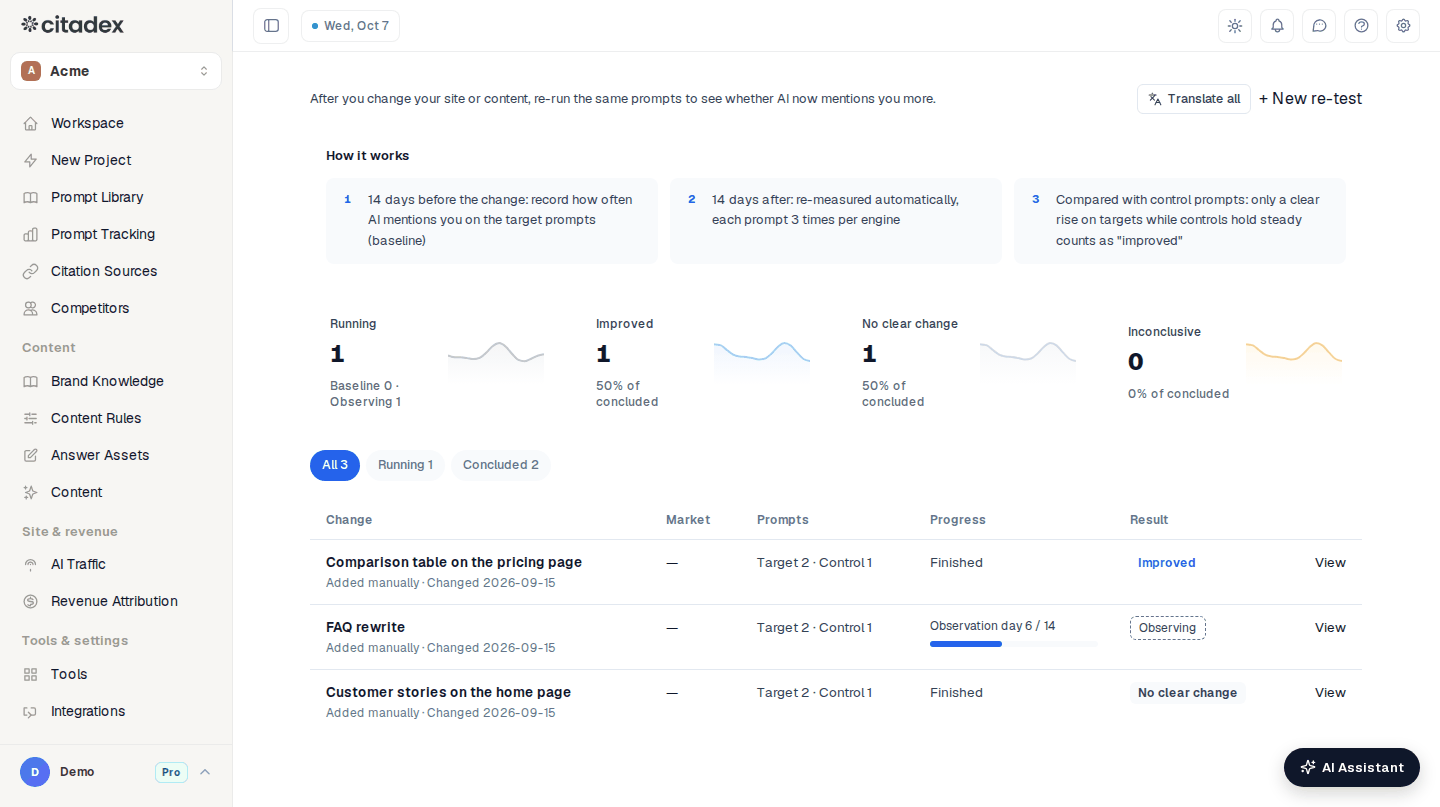
Prompt Tracking → Retests
AI searches
Many engines search the web before answering. This tab lists what they searched and which pages they cited after each search, filterable by market. Tick searches to generate a strategy article for the prompts behind them from the toolbar (the writer takes those searches into account); cited sites link straight to Outreach. When an engine does not publish its searches, the tab says so.
Brand searches
Checks AI answers to searches for your own brand: wrong support numbers, look-alike addresses that aren't official, prices that match no official price, competitors named in brand-search answers, and answers that don't mention you, ranked high / medium / low risk. Brand-defense prompts (up to 8) are scanned and use credits like any prompt; adding them needs enough credits for their first check. Fill in Official facts (official domains, phone numbers, prices) first. See Brand searches.
Outreach
Collects the external sources AI engines cited for your prompts, in tiers (high priority, potential, keep watching), tracks contact status and drafts an outreach email for each source.
Frequently asked questions
There is no "check all" button. New prompts are checked automatically and then scheduled by Auto-scan; for one prompt use Scan now in Evidence.
Why is Generate strategy article unavailable? Autopilot is on for this project; the two are mutually exclusive.
Why does a row show only a few engines? Each row shows only the engines its prompt's market scans.
Was this article helpful?