
Navigating Citadex — Sidebar, Top Bar, AI Assistant and Project Switcher
Where everything lives: the four sidebar groups, the Workspace cards, the top-bar icons, the AI Assistant, how to switch projects and workspaces, and where settings, billing and help are.
The sidebar
The sidebar has four groups. The first has no heading.
| Group | Items |
|---|---|
| (Visibility) | Workspace, New Project, Prompt Library, Prompt Tracking, Citation Sources, Competitors |
| Content | Brand Knowledge, Content Rules, Answer Assets, Content |
| Site & revenue | AI Traffic, Revenue Attribution |
| Tools & settings | Tools, Integrations |
Tabs inside the pages:
- Prompt Library: Discover, My Prompts, Quick Test, Bulk Upload, Coverage.
- Prompt Tracking: Tracked, Achievements, Retests, Outreach, AI searches, Brand searches.
- Citation Sources: Citation analysis, Citation landscape, Citation retention, Opportunities, Market health & repair, Source Map (Pro and above).
- AI Traffic: Overview, AI referrals, AI crawlers, Agents, Data sources.
- Revenue Attribution: Overview, Funnel, AI engines, Markets, Topics, Landing pages, Attribution, Experiments, Connections. Revenue Attribution is open to every account; see Revenue attribution.
Agency accounts also see an agency status row that opens the agency subscription page.
The Workspace
Top to bottom: the headline metrics and visibility gauge; This week’s tasks (up to 5, each with See evidence, Write article or Open change list, plus ✓ done and ✕ dismiss); From mention to recommendation (AI answers → mention you → cite your site → recommend you → first pick, per AI engine); Platform-wide changes when there are any; then breakdowns by engine and market, the language visibility gap, Performing Queries and the Query log. The filter bar at the top filters by market, platform and date range, and Translate all shows prompts in the language you pick.
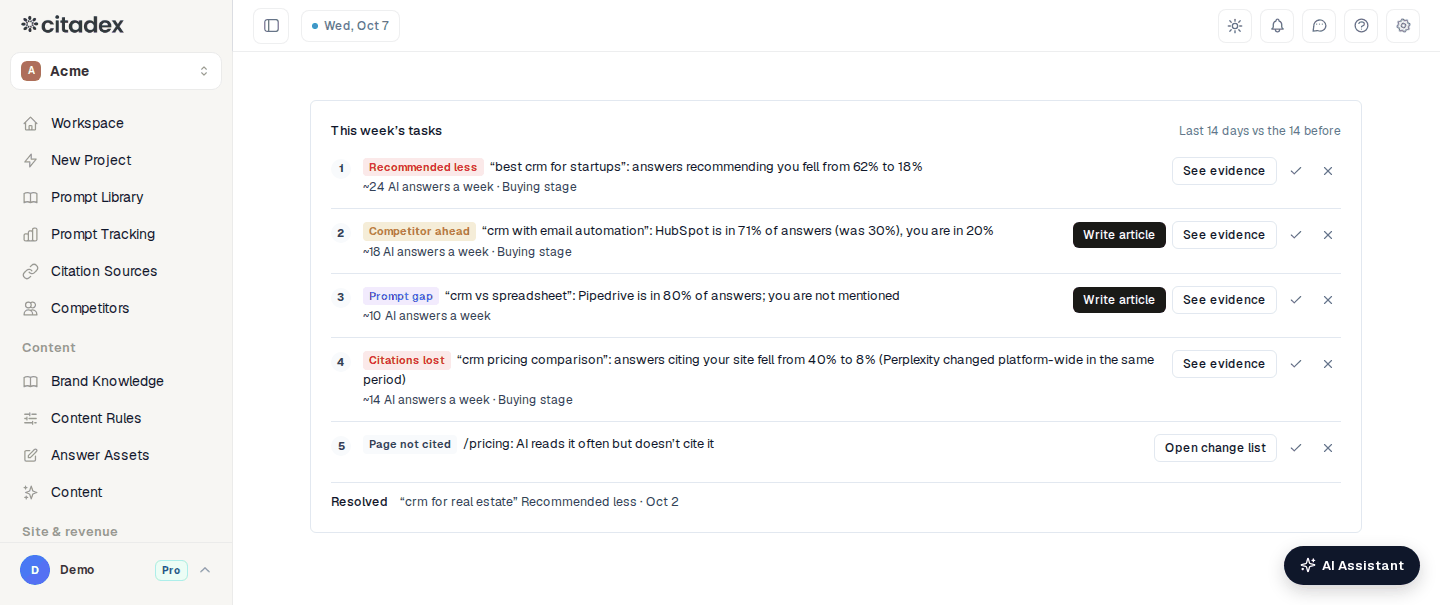
The This week’s tasks card on the Workspace
Project switcher and workspace switcher
The project switcher at the top of the sidebar selects the project every page reads from: prompts, scans, knowledge, rules, integrations and drafts are all per project. If you have been invited to someone else's team, a workspace switcher appears above it so you can move between your own workspace and theirs.
The top bar
From left to right on the right-hand side: a credits pill (Business, Enterprise and agency accounts; it opens the credits page), the theme toggle, the notification bell (a red number shows unread notices), Contact us, the page guide button that reopens the introduction for the current page, Help (opens this help center) and the settings gear.
The AI Assistant
The AI Assistant button in the bottom-right corner opens a drawer on the right. It explains the current page with your own data, answers questions such as "why did this drop?", searches the help center and keeps a conversation history. When something uses credits, such as a scan or an article, it shows a quote first and runs only after you confirm. The top of the drawer has Contact support, and the calendar icon turns on the weekly plan. See AI Assistant and Weekly plan.
The user menu
At the bottom of the sidebar: Settings, API keys (Enterprise and other bring-your-own-key plans), Billing & Plans (Agency subscription for agency accounts), Team & Roles, White label (agency accounts), Invite Friends, Contact us, the language picker and Log out.
Settings
Settings has these tabs: Profile, Preferences (interface language, theme), Email Notifications, In-App Notifications, Billing & Plans, Team & Roles, API & MCP, Affiliate Program, Help Center, and Account & Privacy (log out, delete account). White label is a separate page reached from the user menu.
Frequently asked questions
How do I change the interface language? It follows your browser language on first visit (nine languages). Change it any time from the language picker in the sidebar user menu or in Settings → Preferences. Alert and report emails follow the same language.
Where are markets managed? Prompt Library → My Prompts → "+ Add markets" or "⚙ Markets & engines".
Where are credits and invoices? Plans and upgrades are under Billing & Plans; the credit balance, top-ups and credit history are on the API keys & credits page, Credits tab; invoices and receipts are under Settings → Billing & Plans.
Was this article helpful?