
Revenue Attribution: Follow AI Visits to Leads, Deals and Revenue
Revenue Attribution shows how many leads, opportunities and how much revenue each AI engine brings. This guide covers the connection order (site script first, then revenue sources), every connection card, confidence levels, AI referral vs bought inside AI, recalculation and the data quality check.
What this page does
Revenue Attribution in the sidebar follows visitors who click through from AI answers to leads, opportunities, closed deals and revenue, so you can see how much each AI engine is worth. It is available on every account.
Tabs: Overview, Funnel, AI engines, Markets, Topics, Landing pages, Attribution, Experiments, Connections. Start in Connections.
Connection order: site script first, then revenue sources
Stripe, HubSpot, Shopify and similar systems know who paid, not whether that person came from AI. The site script records visitors who arrive from AI answers and picks up their email when they sign up or fill in a form. Matching the two by email is what ties revenue to an AI engine. If you connect a revenue source without the script, revenue arrives but none of it is tied to AI.
The First-time setup wizard at the top of Connections lists five steps, each with an Open button:
- 1
Site script
On the Site snippet card click Install guide and install the script (the same options as AI Traffic → Data sources). Then turn on Auto-capture form emails on that card (off by default).
- 2
CRM
Connect HubSpot or Salesforce, or push leads and deals with Webhook / API. Stores can connect Stripe, Shopify or WooCommerce.
- 3
Stage mapping
Only for HubSpot: confirm which deal stages are open, won or lost, and how lifecycle stages map to the funnel.
- 4
Window & currency
Set Attribution window and Currency under Attribution settings.
- 5
Verify
At least one AI-sourced contact and one attribution run. The wizard then shows End-to-end chain verified.
If you try to connect a revenue source before the script is installed, a dialog explains why first. Choose Install the tracking script, or It’s installed, continue.
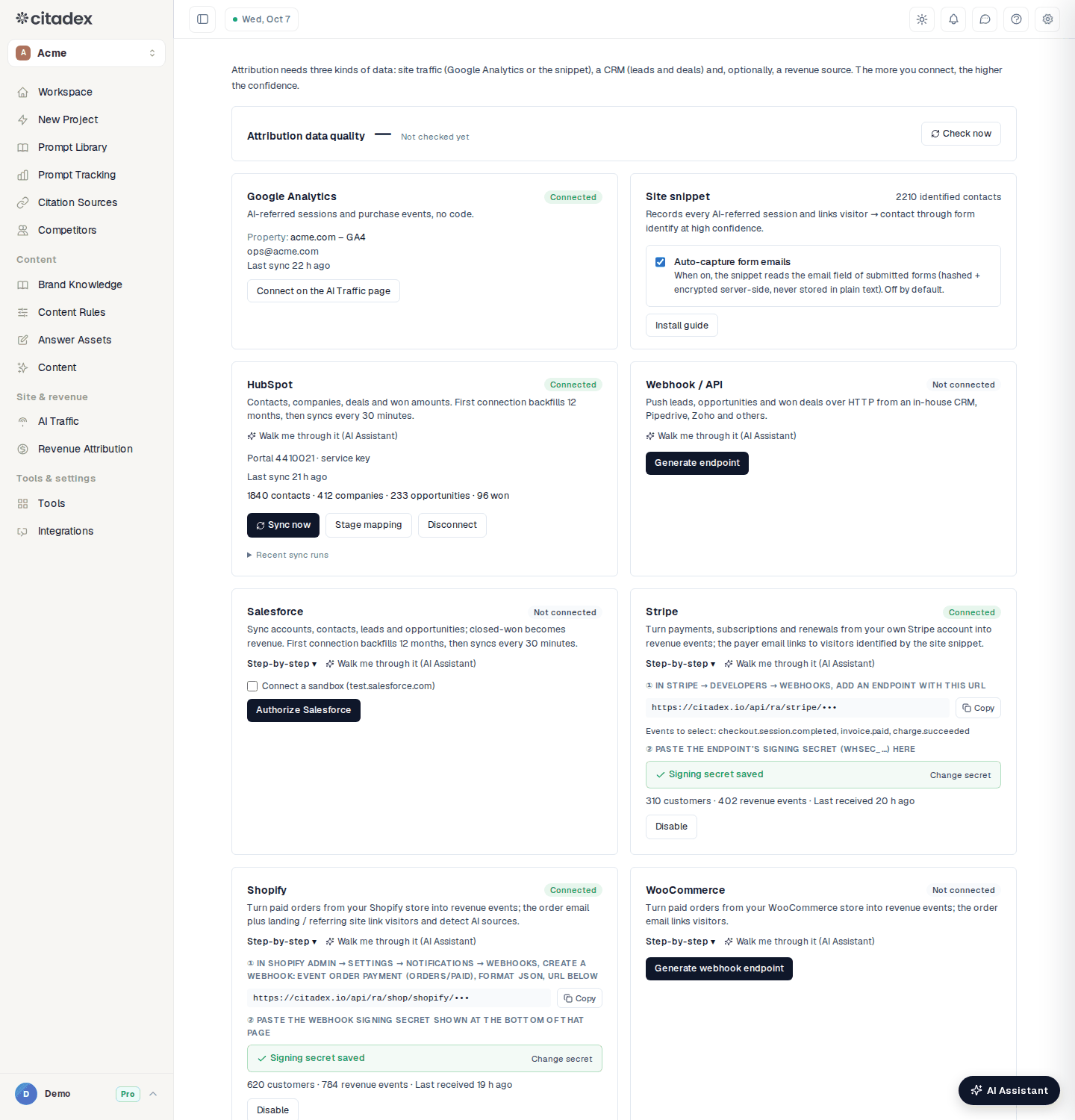
Revenue Attribution → Connections
The connection cards
Under each card's description there are two links: Step-by-step (the full click path) and Walk me through it (AI Assistant), which opens the AI Assistant to guide you.
| Card | How to connect |
|---|---|
| Google Analytics | Click Connect on the AI Traffic page, then Authorize Google Analytics on AI Traffic → Data sources and pick a property. Only the project owner can authorize. |
| Site snippet | Install guide to add the script. With Auto-capture form emails on, the email from a form submit is linked to the visitor. |
| HubSpot | Connect HubSpot opens a three-step drawer: (1) create a service key in HubSpot with the 6 read-only scopes listed in the drawer, copy the key (starts with pat-), paste it under Access token and click Verify and connect; (2) Stage mapping → Save and start sync; (3) done. The first sync backfills 12 months, then syncs every 30 minutes. The card has Sync now, Stage mapping and Disconnect. |
| Salesforce | Create a Connected App in Salesforce, paste its Consumer key and Consumer secret, and click Authorize Salesforce. For a sandbox tick Connect a sandbox (test.salesforce.com). Backfills 12 months, then syncs every 30 minutes. |
| Stripe | Click Generate webhook endpoint, add an endpoint with that URL in Stripe, select checkout.session.completed, invoice.paid and charge.succeeded, paste the endpoint's signing secret (whsec_…) back and click Save secret. Use live mode, not test mode. New payments arrive automatically; past payments are not imported. |
| Shopify | In Shopify admin → Settings → Notifications → Webhooks, create a webhook for the order payment event, format JSON, with the card's URL. Paste the signing secret from the bottom of that page into the card and click Save secret. |
| WooCommerce | In WooCommerce → Settings → Advanced → Webhooks add one with topic Order updated and the card's URL as delivery URL. Paste that webhook's Secret into the card and click Save secret. |
| Webhook / API | For an in-house CRM, Pipedrive, Zoho and similar. Click Generate endpoint, then set your CRM or Zapier / Make to POST JSON to it when a lead is created, an opportunity changes or a deal is won. The format is under Example. Send one test: when the counts on the card go up, it works. Regenerate stops the old URL at once; Disable turns it off. |
Shopify order channels
When someone orders directly inside an AI chat (for example store checkout in ChatGPT or Google AI Mode), the order never touches your site. The Shopify card lists the Order channels it has received with their order counts. AI channels are recognised by name, and you can correct them: tick Bought inside AI and choose the AI platform in the dropdown (Other AI if it is not listed). Untick to stop counting a channel as AI.
Confidence levels
Every attribution record has a confidence level, which you can filter with Confidence at the top of the page:
- Verified: a direct identity link, such as a form email matched to the visitor, a manual link, or an order from an order channel you confirmed as AI.
- Likely: strong evidence without a person-level link, such as a Google Analytics purchase inside an AI session, an AI order channel recognised by name, or a match at company level.
- Modeled: no person-level link; influence estimated from the AI referral share in the window. Shown separately as Modeled influence and never counted as revenue.
Self-reported source (CRM) is its own level: customers who said in a CRM field like "How did you hear about us?" that an AI told them about you. It is listed separately and not added to attributed revenue.
On Attribution, click Evidence on a record to see why it was credited to AI, the timeline and the identity link. You can Mark as wrong or Link engine manually.
AI referral vs bought inside AI
In Overview → Attribution mix, AI Sourced (first touch was AI) and AI Assisted (AI was a later touch) are exclusive and never added together. Once there are orders placed inside AI, AI Sourced is split in two:
- AI referral (visit, then order): the customer clicked through from an AI answer, then ordered or closed.
- Bought inside AI: the customer ordered inside the AI chat without visiting your site. These orders are attributed on their own and never counted twice through the contact.
Recalculation
Attribution runs automatically every hour. To see the effect of a stage-mapping, currency or window change right away, click Recalculate attribution under Attribution settings. Manual recalculation is available once an hour; the card shows how many minutes are left.
Attribution data quality
The Attribution data quality card on Connections lists anything that affects the results; Check now runs the check immediately. Each finding is marked Info, Warning or Error and says how to fix it:
| Finding | What to do |
|---|---|
| Won deals without an amount | Add the amount in the CRM; the next sync picks it up |
| Unmatched CRM contacts (90 d) | Turn on form email capture so more contacts match |
| Possible duplicate deals | Merge or delete the duplicate in the CRM |
| Unrecognised AI-like referrers | Tell us the site and we add it |
| Stale or failing connector | Sync now on that card; if it still fails, disconnect and connect again |
| Amounts without FX conversion | Usually fixed by the next run |
| Page views without a session | Check the script with the install guide |
| Attribution conflicts (multiple engines) | The customer used several AIs; results are usable as they are |
FAQ
I connected Stripe but see no AI revenue. Check that the site script is installed and Auto-capture form emails is on. The customer has to arrive from AI and leave an email first, then pay with the same email.
The wizard is stuck on Verify. Attribution has run but there is no AI-sourced contact yet. It needs a visitor from an AI answer to leave an email in a form, or a CRM lead whose source is AI.
Does disconnecting HubSpot delete data? You choose: keep or delete the imported data.
I can't find a menu in the vendor's admin. Click Walk me through it (AI Assistant) on the card and the assistant guides you step by step.
Was this article helpful?