
AI Assistant: answers from your own data, actions you confirm
The AI Assistant is the chat panel on the right of Citadex. It reads your account’s real data, tells you what to click next, prepares actions that run only after you confirm, searches the Help Center, contacts support and walks you through Revenue Attribution connections.
What the AI Assistant is
The AI Assistant is a chat panel built into Citadex. It reads the real data in your current project (visibility, prompts, competitors, citation sources, AI traffic, revenue attribution and more) to answer questions, and tells you the exact page and button to use. It is made for questions like "what does this page mean", "how did we do this week" and "what should I do first".
Opening and closing it
- Once signed in, click AI Assistant in the bottom-right corner.
- The panel slides in from the right. On a computer it sits next to the page so you can read and ask at the same time; on a phone it covers the page.
- The header shows Now: followed by the page you are on, and answers take that page into account.
- Click ✕ (Close) to hide it.
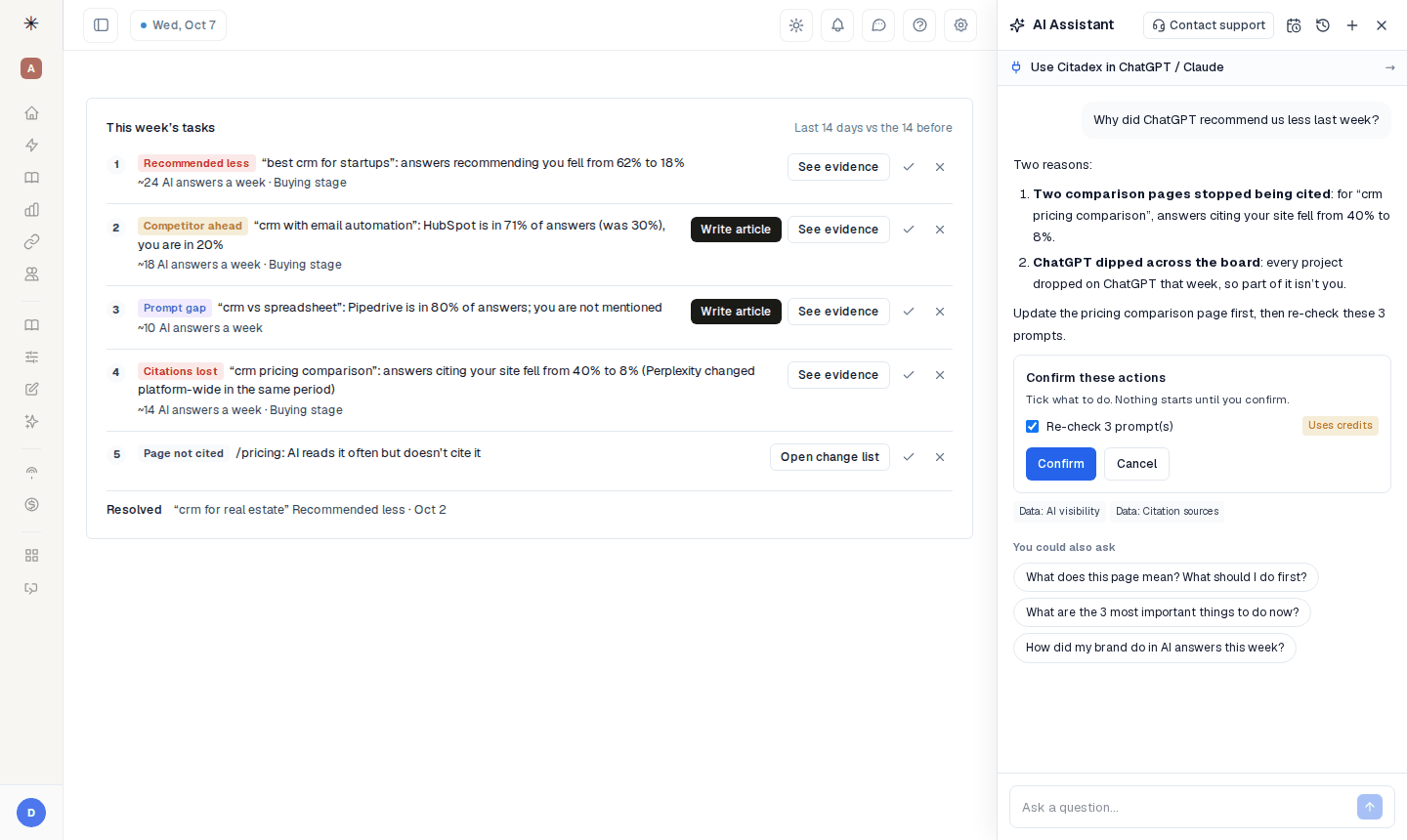
The AI Assistant panel: Contact support, Weekly, History and New chat at the top, suggested questions below
What to ask
A new chat starts with suggested questions for the page you are on; click one to ask it. Typical questions:
- What does this page mean? What should I do first?
- How did my brand do in AI answers this week?
- Which prompts mention competitors but not me?
- Which sites does AI cite most? Where should I get mentioned?
- Why do pages get cited by AI but bring no visits?
- How do I add a new market (country and language)?
Under each answer, Data: labels show which data was read (for example AI visibility, Citation sources, AI traffic, Revenue attribution, This week’s tasks). You could also ask lists follow-up questions.
Answers come from your own data
- The assistant only uses your account’s data and reads it before it states any number, prompt or competitor.
- If something has no data yet (no scan yet, AI traffic not connected), it says so and tells you what produces it.
- It never states credit amounts or prices; it links you to the credits or pricing page instead.
Actions: prepared first, run after you confirm
You can ask the assistant to do things, such as "Re-check my 5 weakest prompts" or "Make the edit checklists for this week’s pages". Nothing runs straight away. Under the answer you get a Confirm these actions card:
- 1
Read each line
Each line says what will happen, for example "Re-check n prompt(s)", "Write an article draft", "Track n new prompt(s)", "Make the edit checklist" or "Mark a page as updated and start a re-test", tagged Uses credits or Free. Adding prompts itself costs nothing, but the balance must cover their first check, or they are not added.
- 2
Tick what you want
Untick anything you don’t want.
- 3
Click Confirm
Nothing starts until you click Confirm. Click Cancel to drop it.
- 4
Check the result
The card becomes What was done, with a View link to the right page (Prompt Tracking, Content, Retests…).
Credit-using actions cost exactly what the same button costs in the app and are refunded if they fail. If your balance is too low, that action is left out of the card and the assistant tells you why and where to top up. The assistant never publishes, deletes or changes settings; you do those on the page itself. Viewers in a workspace cannot run actions.
History
- Click the clock icon for History and pick a conversation to continue it.
- Hover a conversation and click the trash icon to Delete it.
- Click + for a New chat.
- Your weekly plan also arrives here as a conversation; a red dot marks it while unread.
Help Center and support
- For "how do I" and "where is" questions, the assistant answers from its built-in app guide; when that doesn’t cover it, it searches the Help Center, answers from the article and links it.
- Contact support at the top opens the support form, which reaches a person. Use it for bugs, payment problems, or anything the assistant couldn’t solve.
Guided setup for Revenue Attribution
On Revenue Attribution → Connections, every data source card (HubSpot, Salesforce, Stripe, Shopify, WooCommerce, Webhook / API…) has two links:
- Step-by-step expands the full click path.
- Walk me through it (AI Assistant) opens the assistant with the question already asked. It tells you where to click in the other tool, what to choose and what to copy back, and reminds you to install the site script first so revenue can be matched to AI visits.
Use Citadex in ChatGPT / Claude
The bar Use Citadex in ChatGPT / Claude at the top of the panel starts a step-by-step walkthrough and suggests questions to ask once connected. See "Use Citadex in ChatGPT and Claude (API & MCP)".
FAQ
Can the assistant spend credits on its own? No. Anything that uses credits waits for you to click Confirm.
Is there a question limit? Yes, a daily one. When you reach it you see "You’ve reached today’s question limit. Come back tomorrow."
Which language does it answer in? Your interface language. Prompts and brand names stay as they are.
I don’t see the AI Assistant button. If you use a client account from an agency, the agency may not have turned it on for you.
Was this article helpful?