
Use Citadex in ChatGPT and Claude (API & MCP)
Connect Citadex to Claude, ChatGPT, Cursor and other AI assistants in Settings → API & MCP: sign-in connections, permissions and monthly credit limits, advanced keys, what the assistant can read and do, the prompt library, and FAQ.
What this is
MCP is the standard that lets AI assistants call outside tools. Once connected, you can ask about your Citadex data in plain language inside the Claude, ChatGPT, Cursor or Claude Code you already use, for example "How is my brand’s AI visibility this week?" or "Which prompts mention competitors but not us?". When you authorize it you choose read-only, or also let it re-check prompts, add prompts and draft articles; it always asks before spending credits.
Available on Pro and above. On Free the page shows Pro and above and Upgrade to Pro.
Where it is
User menu (bottom left) → Settings → API & MCP. From top to bottom:
- Connection address: the one address every assistant uses, with Copy.
- Connected apps: assistants connected by signing in, with their permission and credits this month.
- Connect your AI assistant: tabs for Claude, ChatGPT, Cursor and Claude Code & others, each with steps.
- Not sure what to ask? Start with the prompt library: featured ready-made prompts.
- Keys (advanced): for tools that cannot sign in.
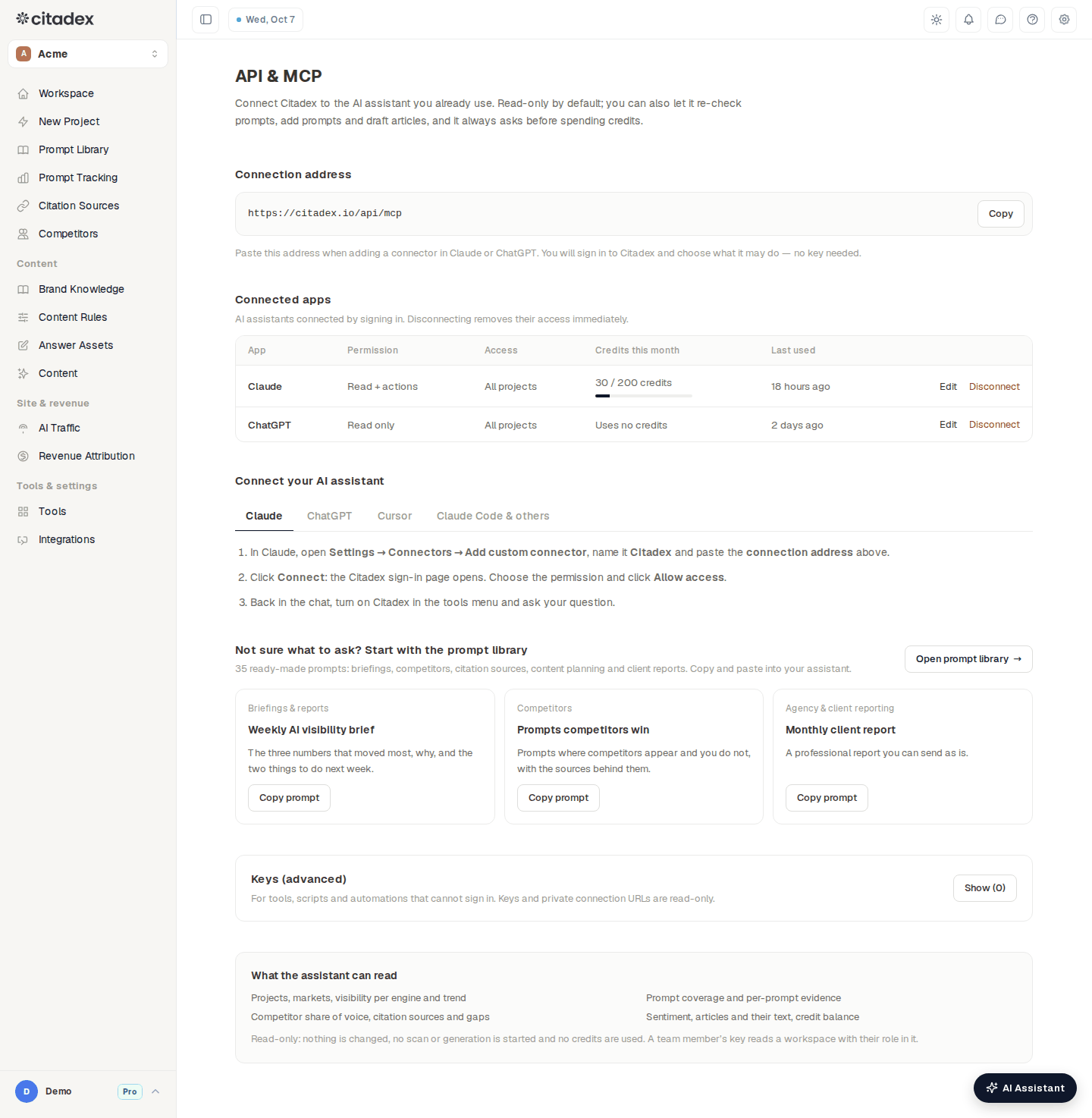
Settings → API & MCP: connection address, connected apps, connection steps
Option 1: sign in (recommended for Claude and ChatGPT)
No key needed. You add a connector in the assistant, sign in to Citadex and choose the permission.
- 1
Add it in Claude
In Claude, open Settings → Connectors → Add custom connector, name it Citadex, paste the connection address and click Connect.
- 2
Or add it in ChatGPT
In ChatGPT, open Settings → Apps & Connectors → Advanced settings and turn on Developer mode. Choose Create, name it Citadex, paste the connection address and set authentication to OAuth. Requires a paid ChatGPT plan.
- 3
Choose the permission on the Citadex page
Read only (recommended): view data only; changes nothing and uses no credits. Read + actions: also re-check prompts, add prompts and generate article drafts.
- 4
Set the limit and projects
With Read + actions, fill in Monthly credit limit for this connection. Under Projects it can access, choose All projects (including team workspaces you belong to) or Chosen projects.
- 5
Click Allow access
Back in Claude or ChatGPT, turn on Citadex in the chat’s tools menu and ask. The app now appears under Connected apps.
Managing connected apps
The Connected apps table shows each app’s Permission, Access, Credits this month (used / limit, or Uses no credits for read-only) and Last used.
- Edit: switch between Read only and Read + actions, change the Monthly credit limit, then Save.
- Disconnect: the app loses access immediately.
Option 2: keys (advanced, for Cursor, Claude Code and scripts)
Open Keys (advanced) → Create key, enter a Name (which tool uses it), choose Access (All projects or Chosen projects) and click Create.
- The full key is shown only once. Copy it, then click I have saved it.
- You also get a Private connection URL, which contains the key. Treat it like a password.
- Cursor: open Settings → MCP → Add new MCP server, paste the config shown on the page into mcp.json and put in your key. Other clients that support remote MCP: use the connection address with the header Authorization: Bearer YOUR_KEY.
- Keys and private connection URLs are read-only; they cannot run actions.
- Use one key per tool and Revoke it when you stop using that tool.
Agencies often create a key that can see only one client’s project for that client’s reporting.
What it can read and do
Once connected, the assistant can call these tools (the tool names appear in Claude’s and ChatGPT’s activity):
| Group | What it reads | Tool names |
|---|---|---|
| Projects & markets | Your projects, markets and engines | list_projects, list_markets |
| Visibility | Overview per engine, trend, sentiment | get_visibility_overview, get_visibility_trend, get_sentiment |
| Prompts | Prompt list, one prompt’s evidence, prompt coverage | list_prompts, get_prompt_evidence, get_prompt_coverage |
| Competitors & recommendations | Competitors and share of voice, mention to recommendation | get_competitors, get_recommendation_share |
| Citation sources | Sources, gaps and opportunities, pages worth getting mentioned on | get_citation_sources, get_citation_gaps, find_citation_opportunities |
| Diagnosis & tasks | This week’s tasks, visibility drop check, brand integrity, market repair plan | get_opportunities, investigate_visibility_drop, check_brand_integrity, get_repair_plan |
| Traffic & revenue | AI revenue, agent readiness | get_ai_revenue, get_agent_readiness |
| Content & credits | Articles and their text, credit balance | list_articles, get_article, get_credit_balance |
A Read + actions connection can also run three actions:
| Action | Tool name | Credits |
|---|---|---|
| Re-check prompts | start_scan | Uses credits |
| Add prompts to tracking | add_prompts | Adding itself costs nothing, but the balance must cover the new prompts' first check, or nothing is added; adding does not check them yet |
| Write an article draft | generate_article | Billed in credits; waits for review, never published automatically |
Actions that use credits: quote first, then confirm
- When you ask for something that uses credits, the assistant first gets a quote: what will happen, how many credits, your balance, and what this connection may still spend this month.
- It shows you the quote and waits for a clear yes.
- Only then does it run.
If the quote is above what is left of the connection’s Monthly credit limit, the action is not run; raise the limit under Edit. Publishing and deleting are never allowed; those stay in Citadex. Viewers in a workspace cannot run actions even when connected.
The prompt library
Not sure what to ask? Open the MCP prompt library (Open prompt library on the settings page, or /mcp/prompts on the website, no sign-in needed). It has 35 ready-made prompts in five groups (Briefings & reports, Competitors, Citation sources, Content planning, Agency & client reporting), each showing which data it uses. Click Copy prompt, paste it into your connected assistant and replace the parts in square brackets. The settings page also lists a few featured prompts.
Good first questions: "How is my brand’s AI visibility this week?", "Which prompts mention competitors but not us?", "Which sources does AI cite most for my market?", "Write me a repair plan for Japan."
You can also open the AI Assistant in Citadex and click Use Citadex in ChatGPT / Claude at the top for a guided setup.
FAQ
What does a team member see? Their access follows their role in the workspace, on the workspace owner’s projects.
Can an agency’s clients use it? Only if the agency turns on API & MCP for clients in the white label settings, and only for the projects assigned to them.
Citadex doesn’t show up in ChatGPT. Check that Developer mode is on, authentication is OAuth, and that you picked Citadex from the tools menu in a new chat. A paid ChatGPT plan is required.
How do I make a connection read-only again? In Connected apps, click Edit, choose Read only and save. It applies at once.
Was this article helpful?